
What Is an Urdu Keyboard?
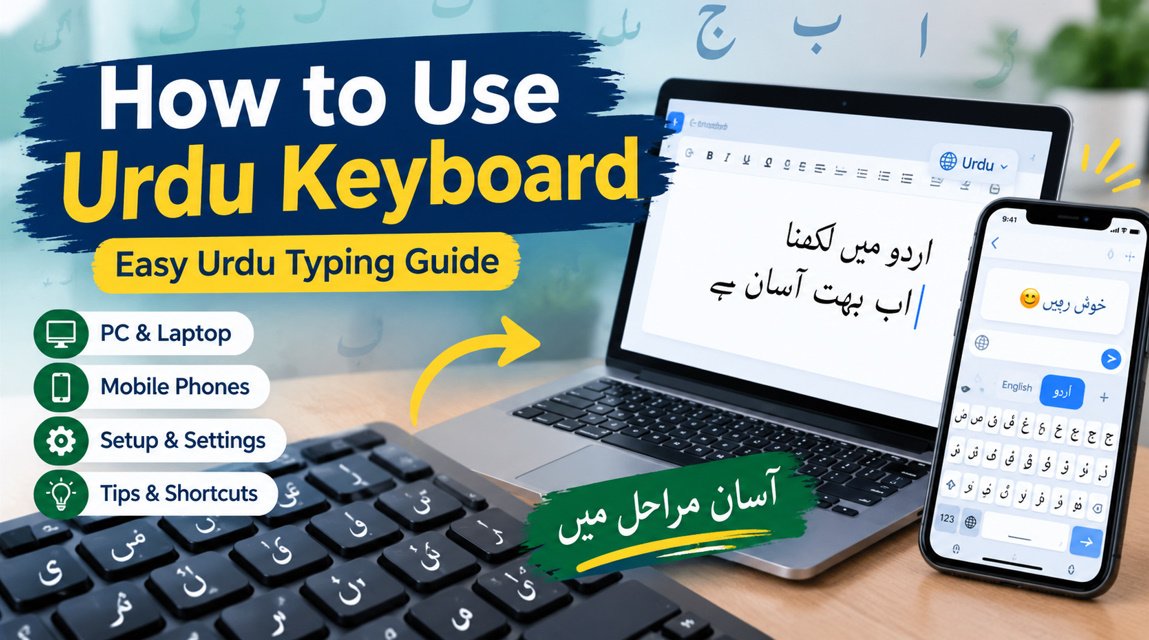
An Urdu keyboard is an input method that allows you to write Urdu digitally on smartphones, tablets, laptops, and computers. It contains Urdu letters, punctuation marks, numbers, and special characters required for Urdu text. With the correct keyboard settings, users can type messages, documents, searches, social posts, and other content.
Modern Urdu keyboards generally offer multiple input methods, including phonetic and traditional layouts. Phonetic typing connects Urdu sounds with familiar English keys, while traditional layouts use dedicated Urdu character positions. Understanding these options helps beginners choose a suitable Urdu typing method and gradually develop faster, more accurate keyboard skills.
- Urdu language input
- Urdu alphabet
- Urdu script
- Digital typing
- Phonetic typing
- Traditional layout
- Urdu punctuation
- Language switching
How to Enable Urdu Keyboard on Android
To use an Urdu keyboard on Android, open your device’s keyboard or language settings and look for the available input languages. Select Urdu and add it to your keyboard. Depending on your device and keyboard application, you may also be able to choose between different Urdu layouts and customize typing preferences.
After Urdu is enabled, open any application with a text field and use the language-switching button to activate it. Many modern keyboards provide word suggestions, autocorrect, voice typing, and multilingual support. These features can make Urdu typing more convenient for beginners and regular users.
- Open Settings
- Find keyboard settings
- Select Languages
- Add Urdu
- Choose a layout
- Open a text field
- Switch input language
- Start typing
How to Use Urdu Keyboard on iPhone
Adding an Urdu keyboard to an iPhone is simple through the built-in keyboard settings. Open Settings, choose General, and then select Keyboard. Use the option to add a new keyboard and select Urdu. Once added, Urdu will appear as an available input language in supported applications.
When writing a message or document, tap the globe or language button to switch between English and Urdu. This is useful for bilingual communication because you can quickly alternate between Urdu sentences and English words, names, numbers, or technical terminology without changing applications.
- Open iPhone Settings
- Select General
- Choose Keyboard
- Add New Keyboard
- Select Urdu
- Open a text field
- Tap the globe icon
- Type Urdu text
How to Type Urdu on Windows PC
Windows computers allow users to add Urdu as an input language. Open the Windows language settings, add Urdu, and select an available Urdu keyboard layout. After completing the setup, you can change between English and Urdu while typing in Microsoft Word, browsers, email applications, text editors, and other compatible programs.
The language indicator helps identify which keyboard is active. You can also use an available Windows keyboard shortcut for faster language switching. Beginners should first practice Urdu letters and common words before moving toward paragraphs, articles, assignments, and other longer forms of Urdu content.
- Open Windows Settings
- Select language options
- Add Urdu
- Choose keyboard layout
- Activate Urdu input
- Open a text editor
- Switch languages
- Practice typing
Urdu Phonetic Keyboard and Traditional Layout
An Urdu phonetic keyboard allows users to enter Urdu according to pronunciation. It maps familiar English keyboard keys to Urdu sounds or characters, making it easier for beginners who already know how to type in English. This method can reduce the learning curve when starting Urdu typing on a computer or mobile device.
A traditional Urdu keyboard uses a dedicated arrangement of Urdu characters. Users must learn the position of different letters and symbols before they can type quickly. This layout can be useful for people who frequently create Urdu content and want direct access to the complete Urdu script.
- Phonetic Urdu input
- Traditional Urdu layout
- Sound-based typing
- Dedicated key positions
- Beginner-friendly option
- Urdu character mapping
- Keyboard practice
- Typing familiarity
How to Improve Urdu Keyboard Typing Speed
Developing good Urdu typing speed requires regular and purposeful practice. Begin with common Urdu letters, simple words, and frequently used phrases. Focus on accuracy rather than speed during the early stages. Once you become familiar with key positions, you can gradually increase your typing pace without sacrificing spelling or punctuation.
Daily Urdu typing exercises can build muscle memory and reduce the need to search for individual keys. Practice writing messages, short paragraphs, and commonly used vocabulary. If you use Urdu frequently for blogging, education, communication, or professional work, consistent practice can significantly improve your overall typing efficiency.
- Practice every day
- Learn common letters
- Type simple words
- Practice common phrases
- Focus on accuracy
- Build muscle memory
- Reduce key searching
- Increase speed gradually
Common Urdu Keyboard Problems and Solutions
New Urdu keyboard users may experience problems such as incorrect characters, unexpected language changes, missing symbols, or improperly displayed Urdu text. These issues can occur because of an incorrect keyboard layout, language configuration, application limitations, unsupported fonts, or problems with right-to-left text formatting.
Start troubleshooting by checking whether Urdu is correctly installed and selected as the active language. If the keyboard still behaves unexpectedly, restart the application or device and check for updates. When creating documents, verify that your software and selected font support Unicode Urdu and right-to-left script.
- Check language settings
- Verify keyboard layout
- Restart the app
- Update the keyboard
- Check Unicode support
- Use compatible fonts
- Verify text direction
- Test another application
Tips for Better Urdu Keyboard Typing
Choosing the right Urdu keyboard layout is one of the most important steps for beginners. A phonetic keyboard can provide an easier starting point, while a traditional Urdu layout may suit users who want to develop professional Urdu typing skills. Try different settings and select the option that feels natural for your writing needs.
For high-quality Urdu content, always review your text after typing. Check spelling, punctuation, spacing, character selection, and right-to-left formatting. These small details are especially important when creating Urdu articles, educational materials, social media posts, business documents, or other published content.
- Choose a suitable layout
- Practice Urdu vocabulary
- Learn frequent characters
- Check spelling
- Review punctuation
- Maintain proper spacing
- Use RTL formatting
- Proofread your content